Automation Rules in 0ads: Set Conditions, Trigger Actions, Stay Hands-Off
Automation Rules in 0ads: Set Conditions, Trigger Actions, Stay Hands-Off
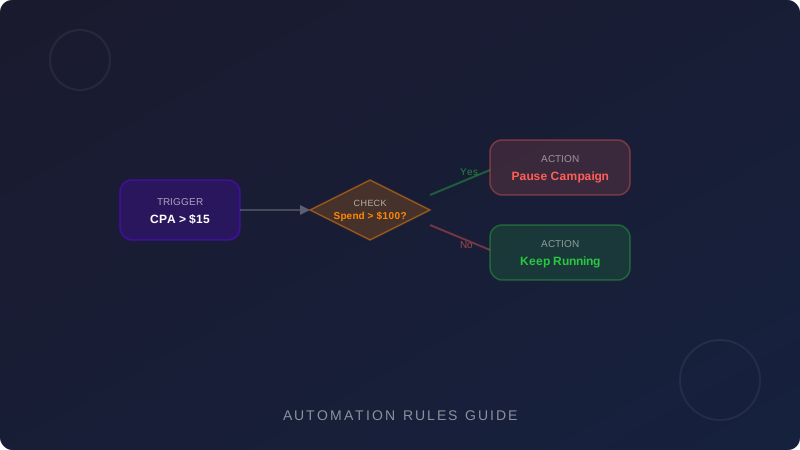
When you manage dozens of campaigns across multiple ad accounts, manually monitoring every ad set becomes impossible. Automation Rules in 0ads let you define performance conditions and attach actions that fire automatically, so your campaigns self-optimize 24/7 without constant manual intervention.
How Automation Rules Work
The logic is straightforward: you set a condition based on a metric and threshold, then assign an action that triggers when the condition is met. Every rule runs on a schedule you define (hourly, every 6 hours, daily) and evaluates the data window you specify (last 1 day, 3 days, 7 days, etc.).
Available actions include:
The Telegram alert integration means you always know when a rule fires, even if you are away from the dashboard.
Practical Rule Examples
Kill Unprofitable Ads Early
Condition: CPA exceeds your target by 50% over the last 3 days and the ad has spent at least $20.
Action: Pause the ad and send a Telegram notification.
This prevents wasting budget on creatives that clearly do not convert, while the minimum spend threshold avoids killing ads before they have enough data.
Scale Winners Gradually
Condition: ROAS is above 2.5x over the last 7 days and daily spend is below $200.
Action: Increase budget by 20%.
Gradual scaling avoids destabilizing the Meta algorithm. The spend cap ensures you only scale ads that still have headroom.
Spend Protection
Condition: Campaign daily spend exceeds $500.
Action: Pause campaign and send Telegram alert.
This acts as a safety net for runaway spending, especially useful when testing new audiences or creatives at higher budgets.
Frequency Cap
Condition: Ad frequency exceeds 3.0 over the last 3 days.
Action: Pause the ad.
High frequency signals audience fatigue. Pausing automatically lets you rotate in fresh creatives without manual monitoring.
Setting Up Your First Rule
Best Practices
Automation Rules free you from reactive campaign management. Instead of firefighting, you define the strategy once and let the system execute it consistently across every ad account you manage.